
Getting started
How the AgriCAD online viewer, desktop viewer and AutoCAD plugin fit together, and how to open your first project in each.
AgriCAD is three products that work on the same laser scans. You can use any one of them on its own; together they cover the way from the scan to the drawing and to your client.
- AgriCAD Online Viewer – share scans with clients in the browser, view-only, from a link.
- AgriCAD Viewer for Windows – the full workstation: E57 import, drafting, survey points and object detection, offline.
- AgriCAD for AutoCAD – point clouds and existing-state tools inside AutoCAD 2019–2026.
Online viewer: your first shared project
- Sign in to your organisation’s portal and choose New project.
- Give it a name, pick building or street, and drop the E57 files. Uploads are chunked and resume if the connection drops.
- Choose a detail level (standard, high or maximum) – the size and cost are shown before you start.
- Wait for the e-mail that says the project is ready, open it, and use Share to create a view link for your client.
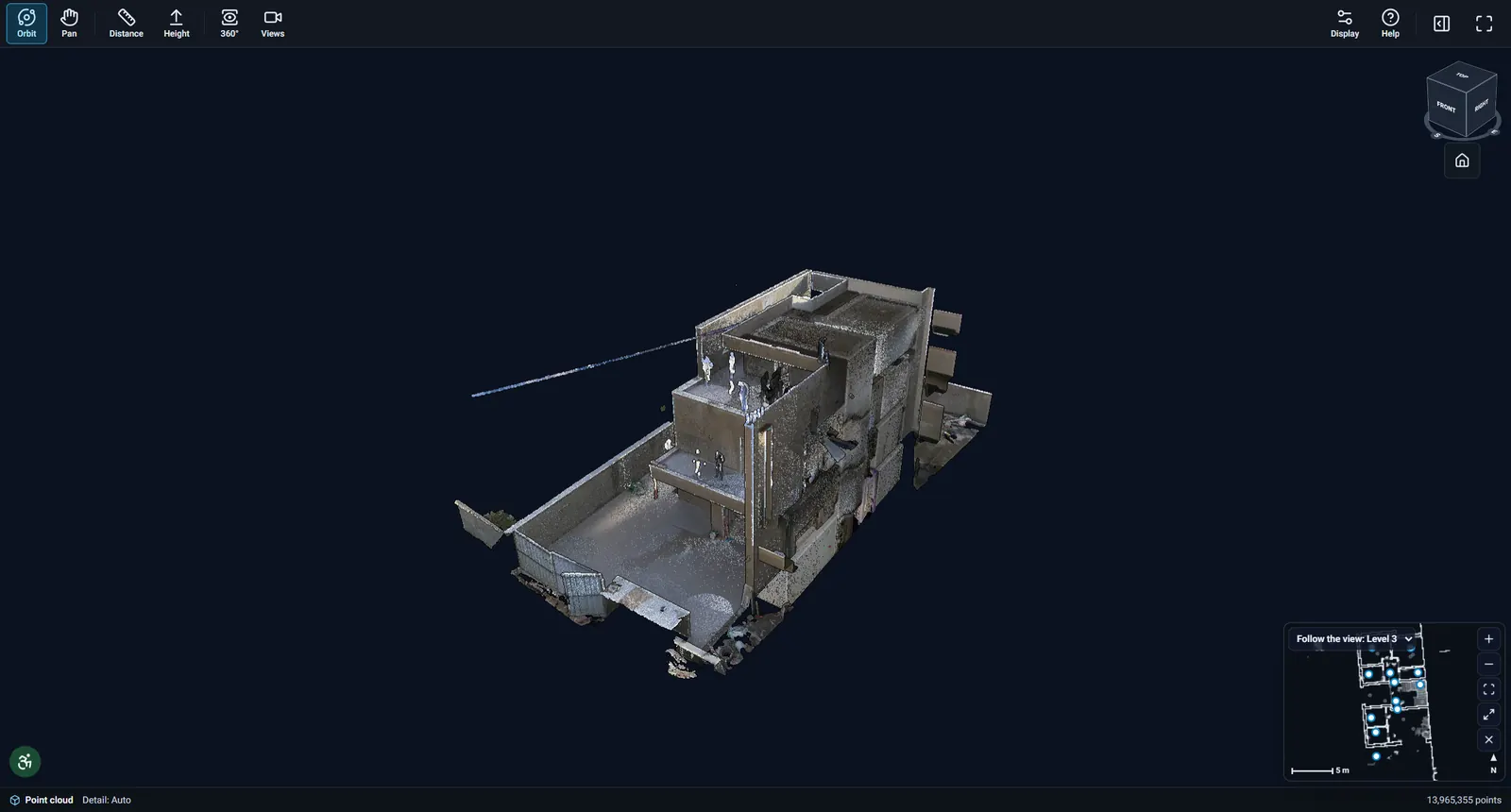
Desktop viewer: open a scan
- Install AgriCAD Viewer and sign in with your organisation account to activate your seat.
- Choose Import E57 and pick one file per scanner setup, or one file for the whole project. The viewer builds a project file next to it.
- Next time, open the project file from the Projects page – it loads from disk, no internet needed.
AutoCAD plugin: load the point cloud
- Install the plugin package and start AutoCAD; the AgriCAD ribbon tab appears.
- Load the point cloud, then create horizontal or vertical slices to draft on.
- Use the floor-plan, door/window and annotation tools, or send points and drawings live from the desktop viewer.
Not sure which product you need? Write to [email protected] – we will look at your scans and suggest a setup.
→Installation & system requirements